
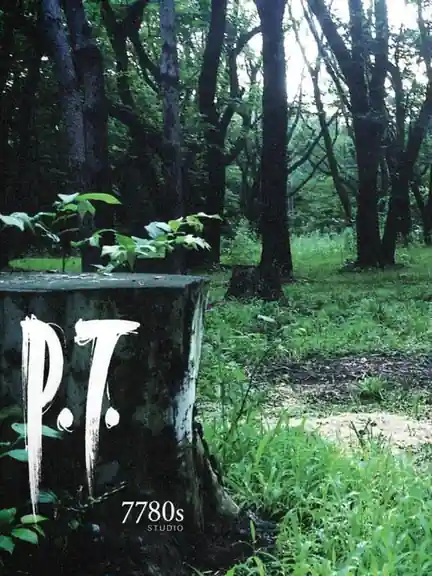
P.T. for PC
Choose the installer to copy the required game data and optionally create a desktop shortcut. Choose the portable ZIP, a package you unpack yourself, if you want to arrange the program and data folders manually. Both contain the same program files; the P.T. download page covers the package choices.
What Do I Need Before Installing P.T.?
- Windows 10 or 11, 64-bit, with a graphics card and driver supporting Vulkan 1.3, a graphics interface that lets the game use your graphics card. See P.T. PC requirements for hardware details.
- At least 3 GB free on the installation drive for a first installation.
- Your existing readable PS4 game-data folder, meeting the P.T. version and file requirements.
- A writable installation location. The target folder and its parent folders cannot be junctions or symbolic links, which are folder links that redirect elsewhere.
A microphone is optional; the P.T. controls guide covers the button alternative for the voice section.
How Do I Install P.T. and Reach the First Room?
With the installer:
- Run
P.T.PC.Port.Setup.exe. ClickFolder...and select your existing P.T. game data folder. - Keep the default destination,
%LocalAppData%\Programs\P.T. PC Port, or clickLocation...to choose a parent folder. The installer createsP.T. PC Portinside it; the second path box shows the final destination. For a new installation, use a new or empty folder. - Keep or clear
Create desktop shortcut with your game icon, then clickInstall. The installer copies the required game data into itsCUSA01127subfolder. - When the button reads
Installed, clickClose. Launchpt.exefrom the installation folder or use the desktop shortcut.
With the portable ZIP:
- Extract all the files from
P.T.PC.Port-portable-windows.zipinto a writable folder. - Either place your existing
CUSA01127game data folder besidept.exe, or leave your data where it is and launchpt.exe. In theP.T. game fileswindow, clickGame folderand select your existing data folder. Its name does not need to match the region code; the game identifies its contents and remembers the selected path.
On a PC that supports DirectX 12, another graphics interface, the first launch asks you to choose DirectX 12 or Vulkan. After the original options screen and opening instructions, you reach the room where the character wakes up. Walk with WASD and look around with the mouse to confirm that the game is working. Esc opens the pause menu; F10 opens PC settings.
Why Does the First Launch Show “Preparing Shaders”?
The Preparing shaders percentage screen appears while the game prepares shaders, small programs used by your graphics card. It is followed by the startup image and loading screen. This preparation can also appear after you change graphics drivers or clear the shader cache, which stores the results for reuse.
The original options screen and opening instructions appear only on the first run. Rendering choices are covered in P.T. settings.
Can I Launch P.T. From My Steam Library?
Yes. In Steam, choose Games > Add a Non-Steam Game to My Library, browse to the installed pt.exe, then click Add Selected Programs. Steam adds a launch shortcut; updates still use the port's own updater or installer.
How Do I Update P.T. and Keep My Saves?
Both installer and portable copies support in-game updates; portable support was added in v1.0.8. When an update is available, press F10 to open PC settings, select Update the game at the bottom, then choose Yes, update now. The game closes, installs the update from the project's GitHub Releases, and restarts. Choose Not now to postpone it.
For a manual update, exit the game, run the new installer, select your existing installation folder, click Install, and confirm the update. This keeps your existing game data and needs at least 1 GB free on the drive. Running the same version's installer against an existing installation offers a repair instead.
Updates preserve game data, settings, saves, and mods. The data folder beside pt.exe holds your settings and saves and is left untouched by updates. The update location must be writable; if the in-game updater rejects a read-only folder, move the game folder to a writable location.
Will Removing P.T. Delete My Saves?
Deleting the entire game folder also deletes the settings and saves in its data subfolder. To keep them, first copy the complete data folder somewhere outside the game folder, then delete the game folder. See P.T. save locations for save details.
You can also move or copy the whole game folder, carrying its settings and saves with it.
Why Won't P.T. Install or Start on Windows?
- The installer rejects the destination: check free space, write access, and whether the target or any parent folder is a folder link. A new installation needs a new or empty folder; an existing P.T. installation can be updated in place.
- The game cannot find your data: use
P.T. game files > Game folderto reselect your existing folder containingchunk1.psarcandtexture.qar. - The game exits or stays on the startup screen: check
data\pt.login the installation folder. This log is a text record of startup steps. The P.T. troubleshooting guide covers startup hangs, graphics-driver crashes, and Windows security alerts.